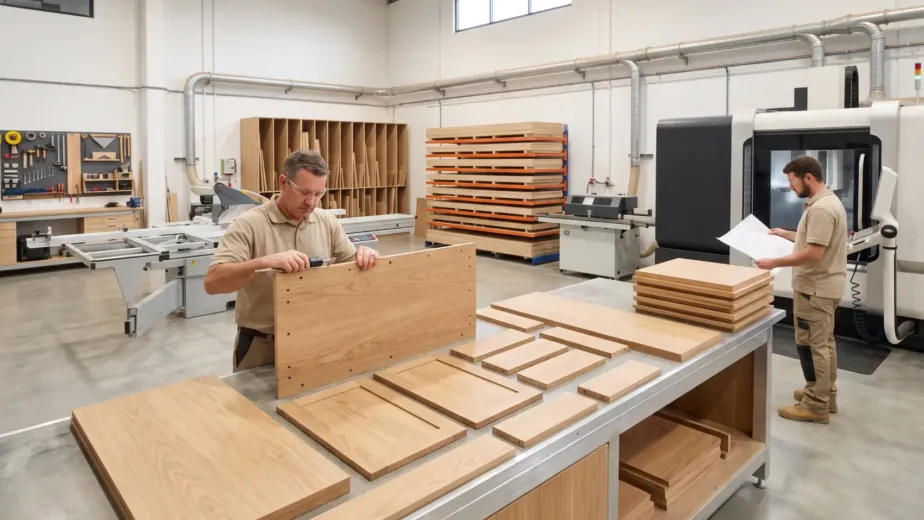

A CNC cutting job can fail before the machine starts. The most common problems often begin inside the submitted file: an incorrect scale, an unidentified material, overlapping lines, missing drilling information or an old revision that looks almost identical to the approved version.
The CNC processor can be manufactured only from the information received and confirmed. A clean digital file reduces interpretation, supports faster quoting and helps prevent avoidable remakes. It also gives cabinet makers, builders and shopfitters a clearer connection between the approved design and the components delivered for assembly.
Preparing CNC files for cabinetry Melbourne production requires more than exporting a drawing and attaching it to an email. The handover should communicate geometry, material, grain direction, edge requirements, machining details, part names and revision status.
This guide explains how to prepare that information without duplicating the separate process used to order pre-drilled cabinet panels.
Start with the CNC Supplier’s File Requirements
Do not assume that every CNC processor accepts the same software, file type or drawing structure. Machinery, CAM software, tooling and production workflows can differ between manufacturers.
Before exporting anything, ask the supplier to confirm:
- Accepted file formats and software versions
- Whether files should contain individual parts or complete assemblies
- Required drawing units and scale
- Layer-naming requirements
- How to identify drilling, pockets and cut-outs
- Whether the supplier creates the nesting layout
- Whether they require a separate panel schedule
- How grain direction and edge treatment should be shown
- Whether they accept customer-created toolpaths
- How revised files should be issued
This conversation can save hours of rework. It also prevents a technically clean file from arriving in a format that does not suit the processor’s system.
For most trade projects, the safest approach is to supply clear design geometry and manufacturing information, then allow the CNC processor to generate or verify machine-specific toolpaths. Never assume that a toolpath created for one machine, tool library or post-processor can run on another system.
Choose the Correct Export Format
DXF is commonly used for two-dimensional panel geometry, but it is not the only possible format. A supplier may also accept DWG, native cabinet-software files, spreadsheets, PDFs or other manufacturing data.
DXF files for CNC cutting can communicate outlines, holes and internal shapes, but the file still needs clear structure. A DXF does not automatically explain which line represents a finished panel edge, a pocket, a drilling operation or an annotation.
PDF drawings can support review and interpretation, but a PDF should not replace editable production geometry unless the CNC supplier specifically accepts that workflow. Screenshots and rendered images are helpful references, but they rarely contain enough reliable information for direct manufacturing.
If you supply a native software file, confirm that the receiving business uses a compatible version and can access any associated material, hardware or machining libraries.
Use Millimetres and Export at Full Size
Australian cabinetry projects generally use millimetres. Confirm the required unit with the CNC supplier and state it in the file package.
Export part geometry at 1:1 scale unless the supplier requests something different. A panel measuring 720 mm by 450 mm should appear at those dimensions in the production file rather than being reduced to fit a drawing sheet.
After exporting, reopen the file in a separate viewer or CAD program and measure several known parts. This simple check can reveal a unit conversion or scaling problem before submission.
Do not rely only on a title block that says “not to scale”. CNC manufacturing needs actual digital geometry at the agreed size.
Clean the Geometry Before Submission
A drawing can look correct on screen while still containing hidden geometry that creates problems during CAM preparation.
Review every part for:
Duplicate and overlapping lines
Two lines placed in the same position may cause the software to interpret the edge more than once. Remove duplicate geometry rather than assuming it will be ignored.
Open contours
An outside panel profile should form a complete, connected boundary. Tiny gaps between lines can prevent the software from recognising the shape correctly.
Unnecessary construction lines
Delete grids, dimensions, centre marks, room outlines, title blocks and reference objects from the production layer unless the supplier requests them. Keep production geometry separate from information used only for human review.
Excessive control points
Curves made from too many small segments can create inefficient or uneven machine movement. Use clean arcs, circles or suitable polylines where the software permits.
Hidden objects
Check frozen, locked or invisible layers before exporting. Unwanted geometry can reappear when the supplier imports the file into another program.
Check frozen, locked or invisible layers before exporting. Unwanted geometry can reappear when the supplier imports the file into another program.
Separate Operations with Clear Layers
Layers allow the supplier to understand what each piece of geometry represents. A single file containing every line on one layer forces the operator to interpret the intended operation manually.
The supplier may provide a required naming system. If not, discuss a simple structure that distinguishes:
- External panel profile
- Internal cut-outs
- Through holes
- Blind holes
- Pockets or recesses
- Grooves or rebates
- Engraving or identification marks
- Non-machining notes
Layer names should describe the operation clearly. Avoid vague names such as “Layer 1”, “New” or “Other”.
Colour can help people read a file, but colour alone should not define a manufacturing operation. Colours may change during import or display differently in another system. Use agreed layer names and written documentation.
Identify Every Material and Thickness
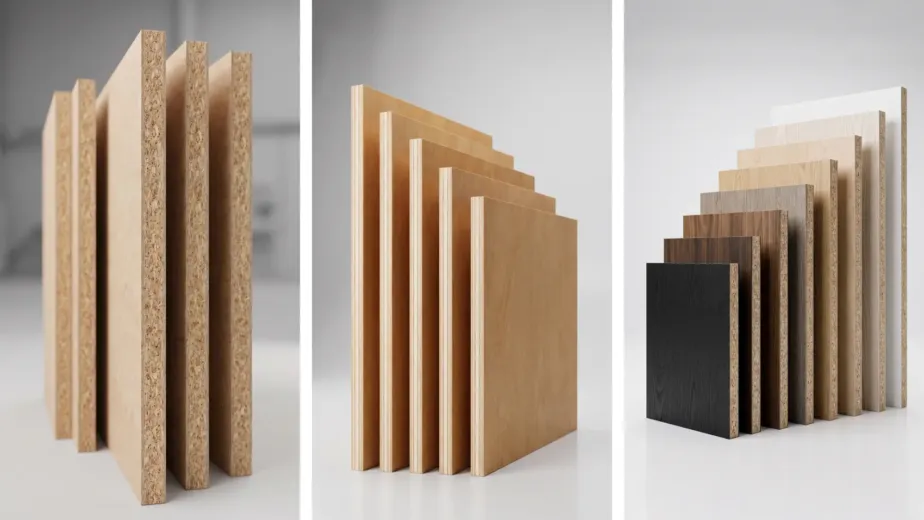
Geometry does not tell the CNC operator whether a panel uses 16 mm melamine, 18 mm MDF, plywood or another product. The file package must connect every component to a confirmed material specification.
For each material group, provide:
- Product or board description
- Manufacturer or range where applicable
- Colour or finish
- Nominal thickness
- Sheet size if relevant
- Surface requirements
- Grain or directional pattern
- Required quantity
- Edge treatment
Do not group visually similar boards under one general name. A white carcass board, moisture-resistant board and paint-grade MDF may require different handling even when the parts share the same thickness.
Accurate material grouping also supports better nesting and reduces the risk of manufacturing a correct shape from the wrong board.
Show Grain and Pattern Direction
Timber-look boards, veneers and directional decorative finishes need an identified orientation. The operator should not need to guess whether the grain runs vertically or horizontally on a door, end panel or drawer front.
Use a consistent grain arrow or another method agreed with the supplier. Include the direction in the panel schedule and, where practical, show it on the reference drawing.
Review the complete elevation before finalising individual files. A panel may look correct by itself while its grain direction conflicts with the adjoining doors.
For projects involving matched patterns, continuous grain or sequenced veneer, provide additional documentation. These requirements affect nesting and cannot be solved by rotating parts only to save material.
Document Edge Requirements Separately
The panel outline does not explain which edges need tape, which edge product applies or whether an edge remains hidden.
Prepare an edge schedule or use a clear coding system that identifies:
- Edges requiring treatment
- Edge material and colour
- Edge thickness
- Finished or visible edges
- Unfinished hidden edges
- Special edge details
- Components requiring treatment before further machining
Make sure the edge notation follows the part’s orientation. Terms such as “left” and “right” can become confusing when a part rotates during nesting. A reference face, labelled drawing or consistent orientation system reduces ambiguity.
Projects using cut-to-size panels Melbourne suppliers should connect the digital part name, panel schedule and edge information through one matching identifier.
Describe Drilling, Pockets and Machining Faces
A circle in a drawing does not explain whether it represents a through hole, a blind hole or a drilling mark. Each operation needs enough information for the supplier to understand the intended result.
Provide the diameter, depth, position and machining face for blind holes and pockets. Identify whether drilling occurs from the front, back or edge of the panel.
For hardware-related machining, state the hardware brand and product reference where relevant. Do not assume that all hinges, runners, connectors and shelf supports use identical drilling.
If a part requires machining on both faces, mark this clearly. Double-sided processing can affect production handling, alignment and pricing.
This article focuses on production-file quality. A separate hardware and drilling schedule may still be necessary for complex cabinetry.
This table is only an example. Use the naming and orientation system accepted by the chosen production provider.
Give Every Part a Unique Name
Part identification becomes essential when a project contains repeated cabinet types or similar components.
A useful naming structure might include:
- Project code
- Room or area
- Cabinet number
- Part type
- Part sequence
- Revision
For example, a name such as K01-B03-LHS-R2 communicates more than Panel Final New.
Use the same identifier in the drawing, CAD file, panel schedule and label request. If two components share identical geometry but serve different locations, decide whether they require separate names for installation control.
Clear identification helps the workshop sort parts and helps installers connect each panel to the correct cabinet.
Include a Panel Schedule with the Files
The drawing shows shape, but the panel schedule controls quantities and specifications. The two should agree before submission.
A useful schedule can record:
| Required field | Information to provide |
|---|---|
| Part ID | Unique component name |
| Cabinet reference | Cabinet or assembly location |
| Quantity | Number of identical parts |
| Finished length | Required final dimension |
| Finished width | Required final dimension |
| Material | Board product and colour |
| Thickness | Confirmed panel thickness |
| Grain | Direction or non-directional status |
| Edging | Edge code or specification |
| Machining | Drilling, pocket or groove reference |
| Revision | Current approved issue |
Do not manually change the spreadsheet without updating the corresponding geometry. A mismatch between the schedule and cut-to-size panel drawings creates uncertainty about which information controls production.
Control Revisions Before Files Leave Your Business
Poor revision control can cause perfectly manufactured parts to arrive for an outdated design.
Create one approved issue for submission. Remove superseded files from the package and avoid filenames such as “final”, “final new” and “final latest”.
Use a clear revision code and date. Add a short revision note explaining what changed, especially when the new issue alters only selected components.
If you revise five panels in a project containing fifty, identify those five panels rather than sending an unexplained replacement folder. Ask the supplier how they want revised files handled when quoting, programming or production has already started.
A focused data handover also helps downstream teams work with the latest approved information rather than repeatedly exchanging full, unclear file sets.
Do Not Send Toolpaths Unless the Workflow Requires Them
Design geometry and CNC toolpaths are not the same thing.
Geometry defines the component. Toolpaths define how a particular machine will cut or drill it using selected tools, feeds, speeds, depths and processing order.
The CNC supplier may prefer to create toolpaths using its own machine configuration and tooling library. Supplying unrequested machine code can introduce risk if it uses the wrong post-processor, tool number, material assumptions or cutting strategy.
Before sending CAM data, confirm:
- Who takes responsibility for toolpath creation
- Which software and version the supplier accepts
- Which post-processor applies
- Whether the supplier will simulate and verify the program
- How tool changes and machining depths are controlled
- Whether customer-generated code is accepted at all
For precision CNC cutting joinery Melbourne, the most valuable submission is not necessarily the most technically complicated file. It is the file package that communicates the approved manufacturing intent without ambiguity.
Complete a Pre-Submission Check
Before uploading the project, open the export as if you were receiving it for the first time.
Confirm that:
- The supplier can open the selected file type
- Units are stated and geometry is full size
- Every outline uses clean, connected geometry
- Duplicate and unused objects have been removed
- Layers follow the agreed naming system
- Materials and thicknesses are confirmed
- Grain direction is clear
- Edge requirements match each part
- Holes, pockets and grooves include required details
- Machining faces are identified
- Every component has a unique part name
- Drawing quantities match the panel schedule
- The current revision is obvious
- Superseded files have been removed
- Reference PDFs match the production data
- One contact person can answer technical questions
Do not release the files for production while dimensions, materials, hardware or revisions remain unconfirmed.
Submitting Cut-to-Size Projects to Sagar Cabinets
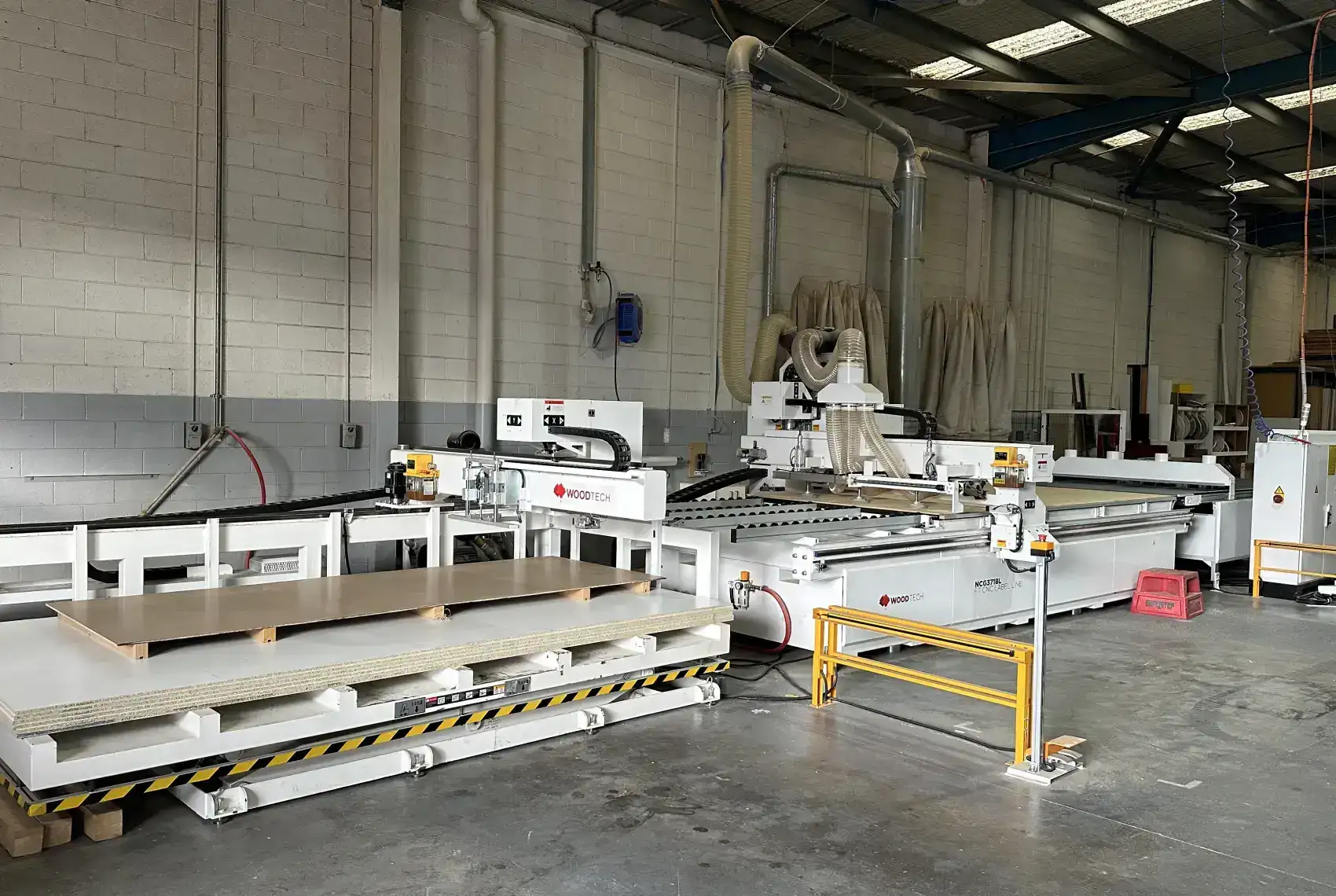
Sagar Cabinets provides CNC cut-to-size cabinetry Melbourne trade professionals can use for cabinet components, flat-pack projects and repeat production requirements.
A clear file package allows the team to review the scope, identify missing information and prepare the project for the agreed production workflow. File requirements may vary according to the software, materials, machining operations and order type, so confirm compatibility before completing a large export.
Review our trade panel-processing service or send a project enquiry to discuss suitable formats and submission requirements for your next project.
Frequently Asked Questions
What file format is best for CNC cabinet cutting?
- The best format depends on the supplier’s software and production workflow. DXF is commonly used for two-dimensional geometry, but some processors accept DWG, native cabinet-software files or other manufacturing data. Confirm the accepted format and software version before exporting.
Should a DXF file be exported at full size?
- Yes, unless the CNC processor requests another method. Exporting at 1:1 scale in the agreed unit reduces interpretation. Reopen the exported file and measure known parts before submission.
Can a CNC supplier work from a PDF or sketch?
- A supplier may use a PDF or sketch for quoting or drawing preparation, but it may not provide production-ready geometry. The processor may need to redraw the components, which can affect cost, lead time and responsibility for dimensions.
Should I nest the panels before sending the files?
- Only if the supplier asks you to provide nested files. Many processors prefer to create nesting layouts around their sheet sizes, tooling, grain requirements and production system.
Do I need to include CNC toolpaths?
- Usually not unless the supplier has approved that workflow. Many CNC processors create and verify machine-specific toolpaths internally. Confirm responsibility before submitting CAM files or machine code.
How should I show grain direction?
- Use the supplier’s required method, such as a grain arrow, orientation code or panel-schedule field. Apply the method consistently across drawings, files and schedules.
What causes CNC files to be rejected or delayed?
- Common causes include unsupported formats, incorrect scale, open contours, duplicate geometry, missing material details, unclear machining depths, unidentified grain direction, inconsistent quantities and uncertain revisions.